
这,是Windows Terminal下的Powershell
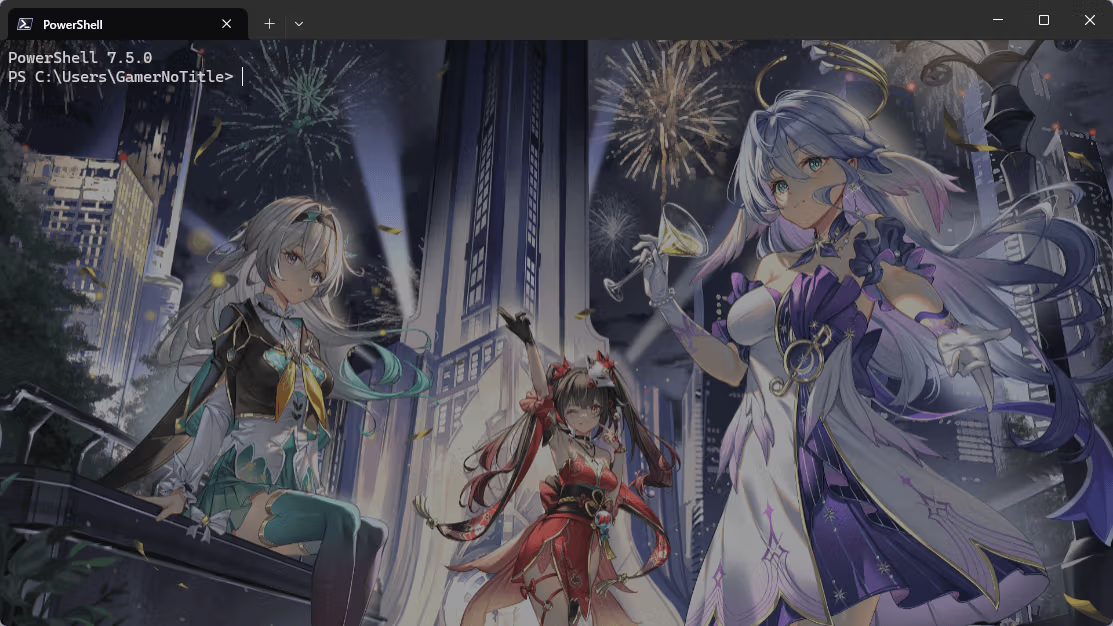
在每天的coding中,我都要与它打交道,久而久之,我发现它有点单调,于是我萌生了美化它的想法
前置条件
- Powershell 7+(必须)
- Powershell 的设置中允许用户运行脚本(必须)
- 使用
Set-ExecutionPolicy来进行设置,后面跟着级别(例如RemoteSigned、unrestricted)等,可以加-user来只对本用户进行修改
- 使用
- Windows Terminal(Win11自带,Win10必须)
- scoop(可选)
备份
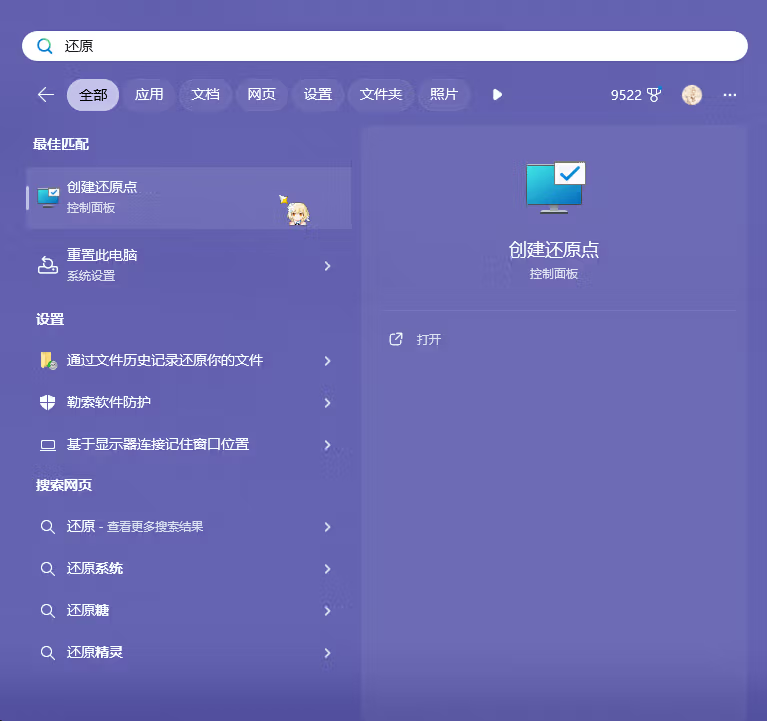
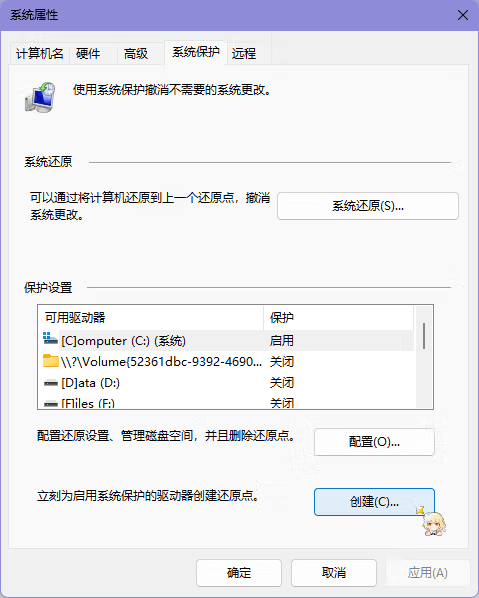
在做美化之前,我强烈建议你进行一次备份,直接搜索创建还原点然后根据按钮提示进行备份就可以了
安装scoop(可选)
使用这条命令安装scoop
Invoke-Expression (New-Object System.Net.WebClient).DownloadString('https://get.scoop.sh')如果遇到错误提示,请检查是否进行了Set-ExecutionPolicy
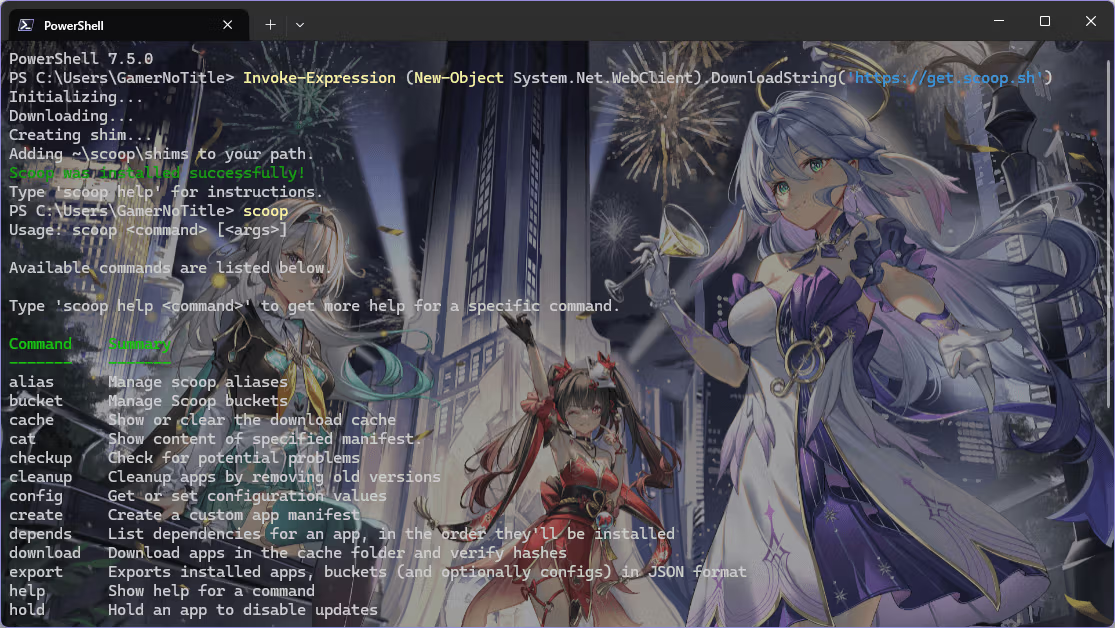
安装过程的提示应该是这样的
PS C:\Users\GamerNoTitle> Invoke-Expression (New-Object System.Net.WebClient).DownloadString('https://get.scoop.sh')
Initializing...
Downloading...
Creating shim...
Adding ~\scoop\shims to your path.
Scoop was installed successfully!
Type 'scoop help' for instructions.到这里就安装完毕了,输入scoop会弹出它的使用提示
安装所需要的字体(可选)
WARNING
不一定要用本文提到的这两种 Nerd Fonts,建议挑一个自己喜欢的
安装 Meslo Nerd Fonts
NOTE
这是网上大多数 Powershell 美化攻略都推荐的字体,我个人不是很喜欢,你可以尝试一下,如果不喜欢,可以往下看看别的
因为会有特殊字体的需求,所以我需要把它们先提前装好,我直接用 scoop 安装的 nerd-fonts
如果你没有特殊图标字体的需求,可以不装的
scoop bucket add nerd-fonts
scoop install Meslo-NF-Mono		# 这里需要管理员权限
如果你像我下图这样遇到了网络问题,记得打开TUN模式
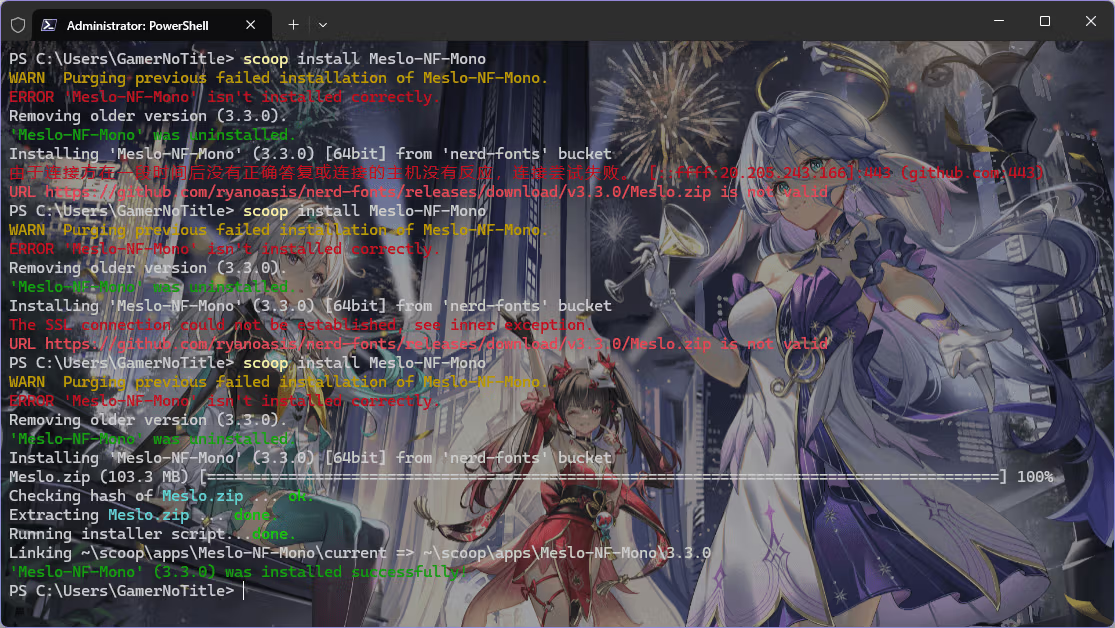
安装完了以后,我们需要在Windows Terminal的设置中,把默认字体从Cascadia Mono改成MesloLGS Nerd Font Mono(或同系列其他字体)
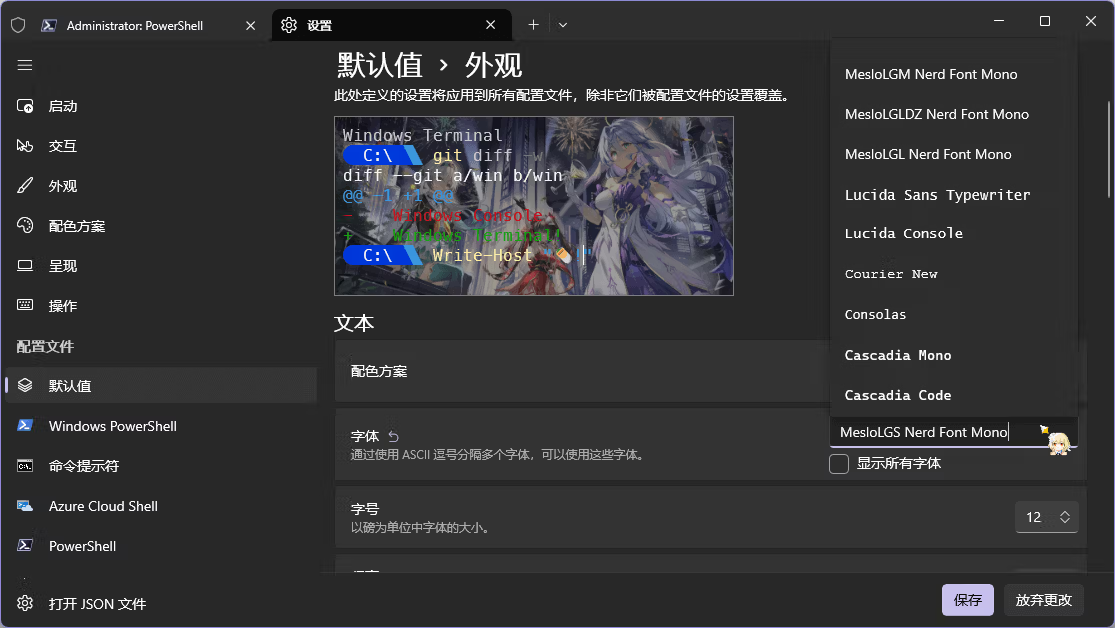
安装 CaskaydiaMono Nerd Font
因为个人感觉 Meslo Nerd Fonts 实在是太细了,我还是喜欢原来 Terminal 自带的那个字体,于是我就去找其他的 Nerd Font,然后找到了这个,感觉比较符合我的胃口
下载链接:https://github.com/ryanoasis/nerd-fonts/releases/download/v3.3.0/CascadiaMono.zip
直接按照平常装字体那么安装就行了,然后在字体选择里面选择它就可以了
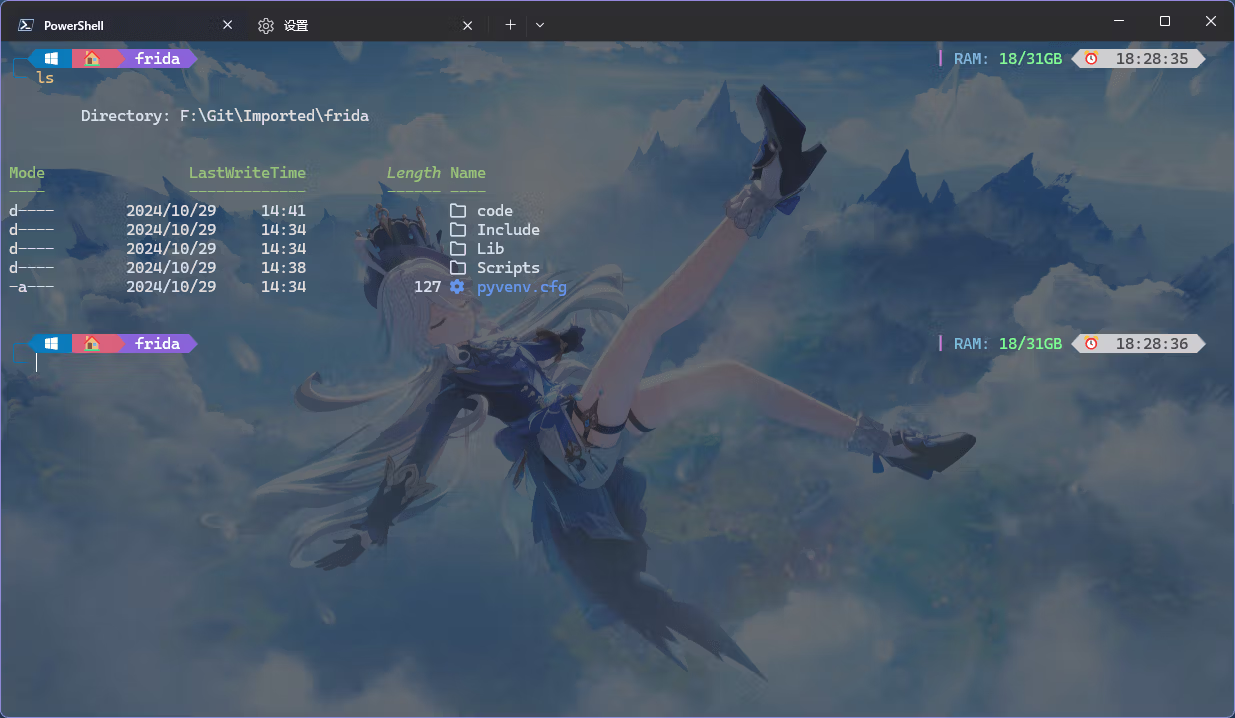
其他 Nerd Font
来这里挑吧:https://www.nerdfonts.com/font-downloads
安装 oh-my-posh
可以去微软商店装
https://apps.microsoft.com/detail/xp8k0hkjfrxgck?hl=en-us&gl=US
或者直接从 Github 下载 MSI 安装包
安装好后,如果你装了 scoop,建议再安装一个 posh-git
scoop bucket add extras
scoop install posh-git
Add-PoshGitToProfile
如果本机没有7-zip,它会自动装一个(依赖)
PS C:\Users\GamerNoTitle> scoop install posh-git
WARN  Purging previous failed installation of 7zip.
ERROR '7zip' isn't installed correctly.
Removing older version (24.09).
'7zip' was uninstalled.
Installing '7zip' (24.09) [64bit] from 'main' bucket
7z2409-x64.msi (1.9 MB) [=========================================================================] 100%
Checking hash of 7z2409-x64.msi ... ok.
Extracting 7z2409-x64.msi ... done.
Linking ~\scoop\apps\7zip\current => ~\scoop\apps\7zip\24.09
Creating shim for '7z'.
Creating shim for '7zFM'.
Making C:\Users\GamerNoTitle\scoop\shims\7zfm.exe a GUI binary.
Creating shim for '7zG'.
Making C:\Users\GamerNoTitle\scoop\shims\7zg.exe a GUI binary.
Creating shortcut for 7-Zip (7zFM.exe)
Persisting Codecs
Persisting Formats
Running post_install script...done.
'7zip' (24.09) was installed successfully!
Notes
-----
Add 7-Zip as a context menu option by running:
"C:\Users\GamerNoTitle\scoop\apps\7zip\current\install-context.reg"
Installing 'posh-git' (1.1.0) [64bit] from 'extras' bucket
posh-git.1.1.0.nupkg (44.3 KB) [==================================================================] 100%
Checking hash of posh-git.1.1.0.nupkg ... ok.
Extracting posh-git.1.1.0.nupkg ... done.
Running pre_install script...done.
Linking ~\scoop\apps\posh-git\current => ~\scoop\apps\posh-git\1.1.0
Adding ~\scoop\modules to your PowerShell module path.
Installing PowerShell module 'posh-git'
Linking ~\scoop\modules\posh-git => ~\scoop\apps\posh-git\current
'posh-git' (1.1.0) was installed successfully!
启用 oh-my-posh
使用下面的命令来加载 oh-my-posh
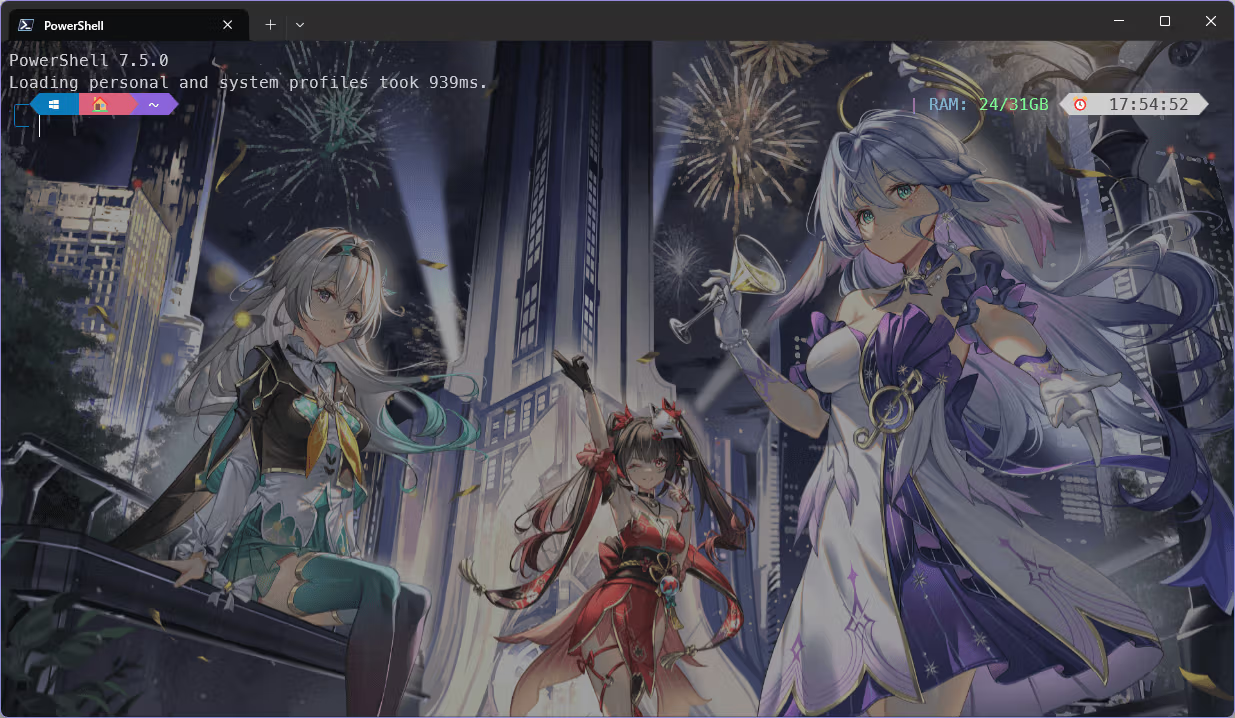
oh-my-posh init pwsh | Invoke-Expression此时就会发现终端已经大变样了
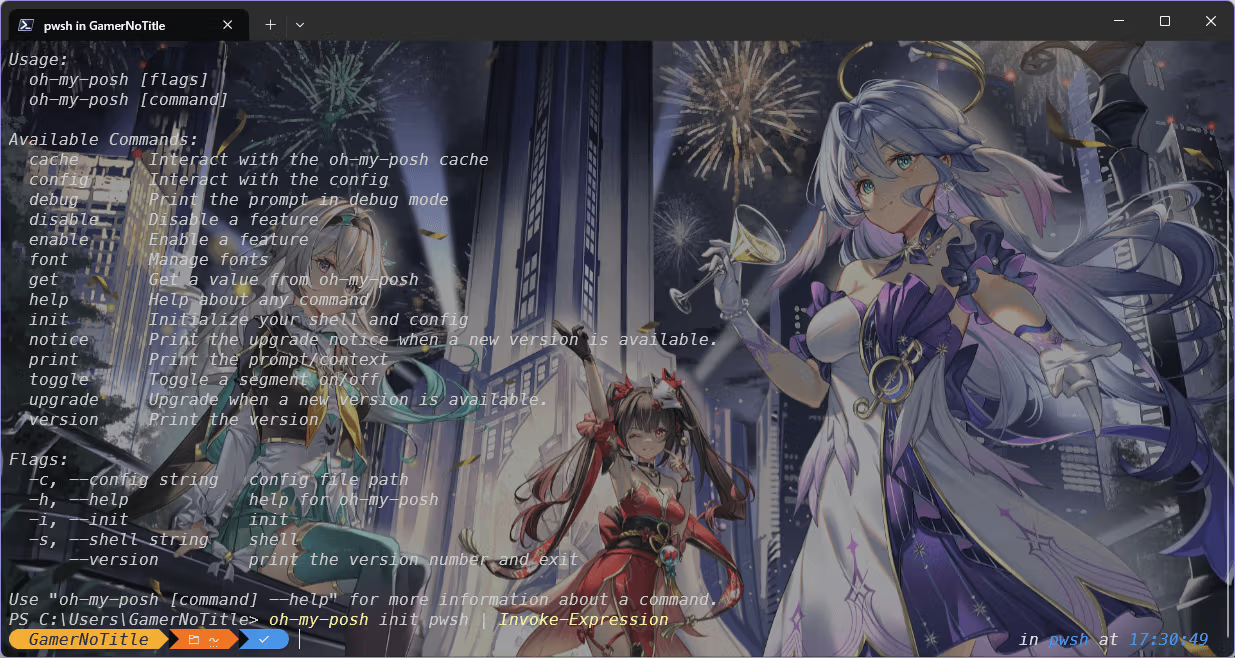
可以去 oh-my-posh 的网站看看各种各样的主题,挑一个自己喜欢的
这里放上几个我觉得还不错的主题名称
blueish
catppuccin
easy-term
gmay
if_tea
Tokyo
你需要使用这样的命令来使得 oh-my-posh 每次都被加载(你需要把theme换成你喜欢的主题名称)
oh-my-posh init pwsh --config 'C:\Users\GamerNoTitle\AppData\Local\Programs\oh-my-posh\themes\<theme>.omp.json' | Invoke-Expression这行命令需要写在 $PROFILE 里面,可以直接 notepad $PROFILE 或者 code $PROFILE 打开这个配置文件,写进去就好了,例如我用的主题是easy-term,就写作oh-my-posh init pwsh --config "$env:POSH_THEMES_PATH/easy-term.omp.json" | Invoke-Expression
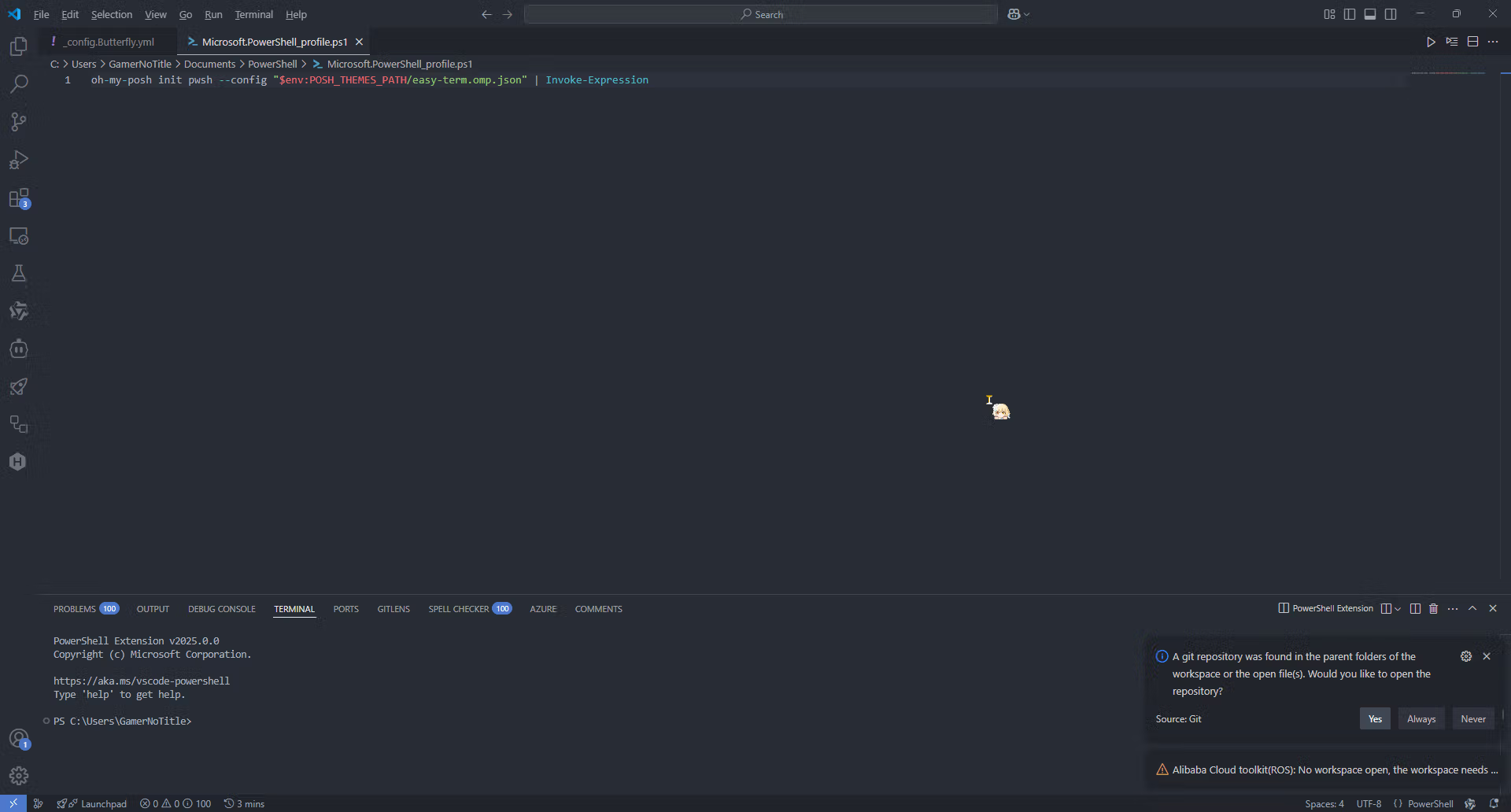
再次打开Powershell,就会发现它确实已经加载了自己的配置文件了
安装文件图标模块(可选)
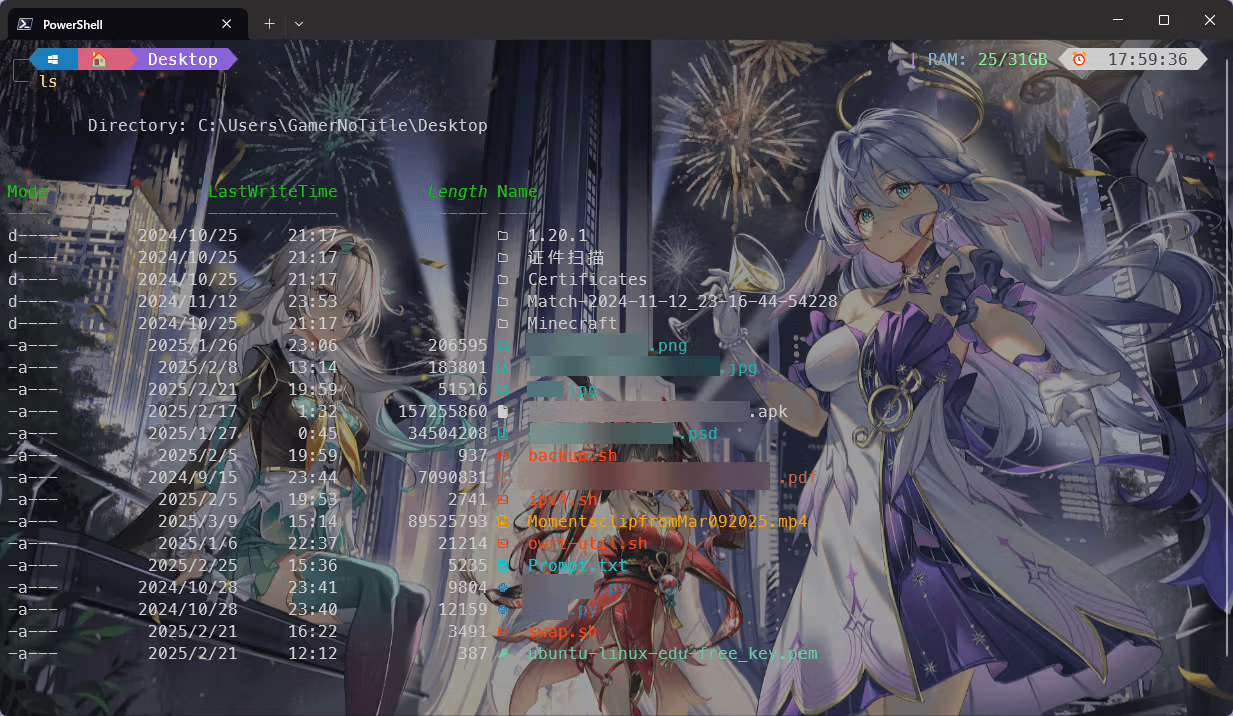
我想要让我的Terminal自动根据文件类型显示图标,这个时候我们需要安装Terminal-Icons(需要安装Nerd Fonts)
这里我采用 scoop 安装:scoop install terminal-icons
╭─ 🏠 ~ | RAM: 24/31GB ⌛ 462ms ⏰ 17:56:13
╰─ scoop install terminal-icons
Installing 'terminal-icons' (0.11.0) [64bit] from 'extras' bucket
terminal-icons.0.11.0.nupkg (124.5 KB) [======================================================================] 100%
Checking hash of terminal-icons.0.11.0.nupkg ... ok.
Extracting terminal-icons.0.11.0.nupkg ... done.
Running pre_install script...done.
Linking ~\scoop\apps\terminal-icons\current => ~\scoop\apps\terminal-icons\0.11.0
Installing PowerShell module 'Terminal-Icons'
Linking ~\scoop\modules\Terminal-Icons => ~\scoop\apps\terminal-icons\current
'terminal-icons' (0.11.0) was installed successfully!
Notes
-----
Use the module by running: 'Import-Module Terminal-Icons'
Add it to your $PROFILE to make it permanent
A Nerd Font is required for this module to work同样,我们需要把配置写进 $PROFILE 里面,直接加上这一行
Import-Module -Name Terminal-Icons然后跑 ls 或者 dir 就能够看到图标了
总结
最后我换了张图,顺带换了个配色方案,这样看起来就很协调了
其实玩这个美化还有一个原因就是我昨天给我的 Ubuntu Live Server 装了 zsh,然后就想着把 Windows 也弄一下,弄出来的结果挺不错的,应该能在我的电脑坚持比较久的时间吧(俗话说美化的尽头是默认)
芙芙可爱捏~最后放上方案合集
-
配色方案:One Half Dark
-
字体:CaskaydiaMono Nerd Font
-
背景图:自己去下 https://t.me/DohnaNyan/9471
-
背景不透明度:30%
-
其他保留默认
-
$PROFILE内容
oh-my-posh init pwsh --config "$env:POSH_THEMES_PATH/easy-term.omp.json" | Invoke-Expression
Import-Module -Name Terminal-Icons- 更改过的easy-term内容(添加了Python的venv显示,效果看下图,覆盖了
C:\Users\%username%\AppData\Local\Programs\oh-my-posh\themes\easy-term.omp.json)

{
  "$schema": "https://raw.githubusercontent.com/JanDeDobbeleer/oh-my-posh/main/themes/schema.json",
  "blocks": [
    {
      "alignment": "left",
      "newline": true,
      "segments": [
        {
          "background": "#0c7bbb",
          "foreground": "#ffffff",
          "leading_diamond": "\u256d\u2500\ue0b2",
          "properties": {
            "alpine": "\uf300",
            "arch": "\uf303",
            "centos": "\uf304",
            "debian": "\uf306",
            "elementary": "\uf309",
            "fedora": "\uf30a",
            "gentoo": "\uf30d",
            "linux": "\ue712",
            "macos": "\ue711",
            "manjaro": "\uf312",
            "mint": "\uf30f",
            "opensuse": "\uf314",
            "raspbian": "\uf315",
            "ubuntu": "\uf31c",
            "windows": "\ue70f"
          },
          "style": "diamond",
          "template": " {{ if .WSL }}\ue712 on {{ end }}{{ .Icon }}  ",
          "type": "os"
        },
        {
          "background": "#DA627D",
          "foreground": "#ffffff",
          "powerline_symbol": "\ue0b0",
          "style": "diamond",
          "template": " 🏠 ",
          "type": "text"
        },
        {
          "background": "#8a62da",
          "foreground": "#ffffff",
          "powerline_symbol": "\ue0b0",
          "properties": {
            "style": "folder"
          },
          "style": "powerline",
          "template": " {{ .Path }} ",
          "type": "path"
        },
        {
          "background": "#191f48",
          "foreground": "#43CCEA",
          "style": "powerline",
          "powerline_symbol": "\ue0b0",
          "foreground_templates": [
            "{{ if or (.Working.Changed) (.Staging.Changed) }}#FF9248{{ end }}",
            "{{ if and (gt .Ahead 0) (gt .Behind 0) }}#ff4500{{ end }}",
            "{{ if gt .Ahead 0 }}#B388FF{{ end }}",
            "{{ if gt .Behind 0 }}#B388FF{{ end }}"
          ],
          "properties": {
            "branch_template": "{{ trunc 25 .Branch }}",
            "fetch_stash_count": true,
            "fetch_status": true,
            "fetch_upstream_icon": true
          },
          "template": " {{ .UpstreamIcon }}{{ .HEAD }}{{if .BranchStatus }} {{ .BranchStatus }}{{ end }}{{ if .Working.Changed }} \uf044 {{ .Working.String }}{{ end }}{{ if and (.Working.Changed) (.Staging.Changed) }} |{{ end }}{{ if .Staging.Changed }} \uf046 {{ .Staging.String }}{{ end }}{{ if gt .StashCount 0 }} \ueb4b {{ .StashCount }}{{ end }} ",
          "trailing_diamond": "\ue0b4",
          "type": "git"
        }
      ],
      "type": "prompt"
    },
    {
      "alignment": "right",
      "segments": [
        {
          "foreground": "#81ff91",
          "style": "diamond",
          "template": "<#cc7eda> \u007C </><#7eb8da>RAM:</> {{ (div ((sub .PhysicalTotalMemory .PhysicalAvailableMemory)|float64) 1073741824.0) }}/{{ (div .PhysicalTotalMemory 1073741824.0) }}GB",
          "type": "sysinfo"
        },
        {
          "foreground": "#81ff91",
          "properties": {
            "fetch_version": true
          },
          "style": "powerline",
          "template": "<#cc7eda> \u007C </><#7eb8da>\ue718</> {{ if .PackageManagerIcon }}{{ .PackageManagerIcon }} {{ end }}{{ .Full }}",
          "type": "node"
        },
        {
          "type": "php",
          "style": "powerline",
          "foreground": "#81ff91",
          "template": "<#cc7eda> \u007C </><#7eb8da>\ue73d</> {{ .Full }}"
        },
        {
          "type": "npm",
          "style": "powerline",
          "foreground": "#81ff91",
          "template": "<#cc7eda> \u007C </><#7eb8da>\ue71e </> {{ .Full }}"
        },
        {
          "type": "python",
          "style": "powerline",
          "foreground": "#81ff91",
          "properties": {
            "fetch_virtual_env": true,
            "fetch_version": true
          },
          "template": "{{ if .Venv }}<#cc7eda> \u007C </><#7eb8da>\ue73c</> {{ .Env.VIRTUAL_ENV | base }} ({{ .Full }}){{ end }}"
        },
        {
          "type": "sysinfo",
          "style": "powerline",
          "foreground": "#81ff91",
          "template": "<> </>"
        },
        {
          "background": "#cecece",
          "foreground": "#4b4b4b",
          "leading_diamond": "\ue0b2",
          "trailing_diamond": "\ue0b0",
          "properties": {
            "style": "austin",
            "threshold": 150
          },
          "style": "diamond",
          "template": "⌛  {{ .FormattedMs }} ",
          "type": "executiontime"
        },
        {
          "background": "#cecece",
          "foreground": "#4b4b4b",
          "leading_diamond": "\ue0b2",
          "properties": {
            "time_format": "15:04:05"
          },
          "style": "diamond",
          "template": "⏰  {{ .CurrentDate | date .Format }} ",
          "trailing_diamond": "\ue0b0",
          "type": "time"
        }
      ],
      "type": "prompt"
    },
    {
      "alignment": "left",
      "newline": true,
      "segments": [
        {
          "foreground": "#0c7bbb",
          "style": "plain",
          "template": "\u2570\u2500",
          "type": "text"
        }
      ],
      "type": "prompt"
    }
  ],
  "final_space": true,
  "version": 3
}